Enrolling Patients in Patient App
This topic is intended for Independent pharmacies only and is not applicable to Rexall pharmacies.
There are a few steps to enroll a patient in the Patient App program: validate the patient's information, send the enrollment request from Propel Rx, and have the patient accept the enrollment request or linkage.
Patients with any status can be enrolled in the Patient App program, however, patients under 14 years of age or those in a non-retail group cannot be enrolled (i.e., the Patient App Enroll/Decline button will be disabled). If you have a patient under 14 years of age that would like to use the app, their caregiver can be enrolled and manage their prescriptions. For more information, see Managing a Caregiver Relationship for Patient App.
For more information about enrolling patients in the Patient App program, select the dropdowns below.
 Validating the Patient's Information
Before a patient can be enrolled in the Patient App program, the following information must be entered in the Main tab of the Patient Folder:
-
Birth Date - this is used to validate the patient on the app.
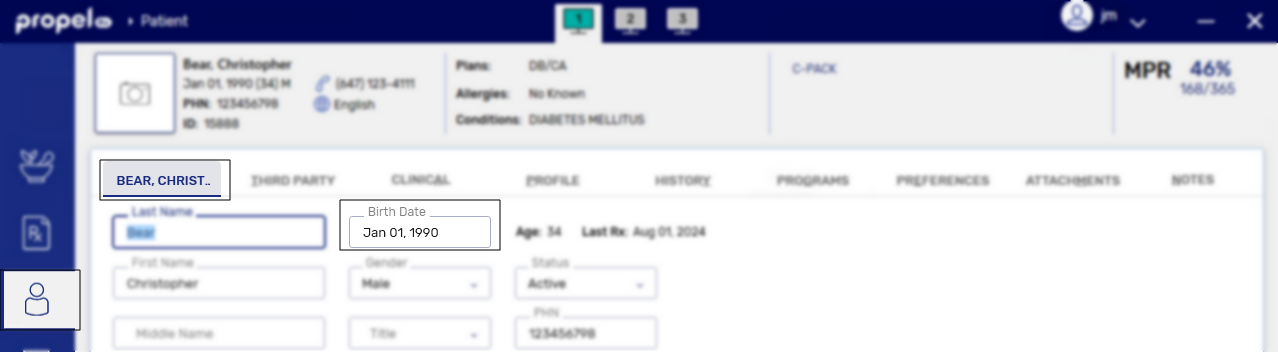
-
Primary email address - this should be the email address that the patient wants to use for the app.
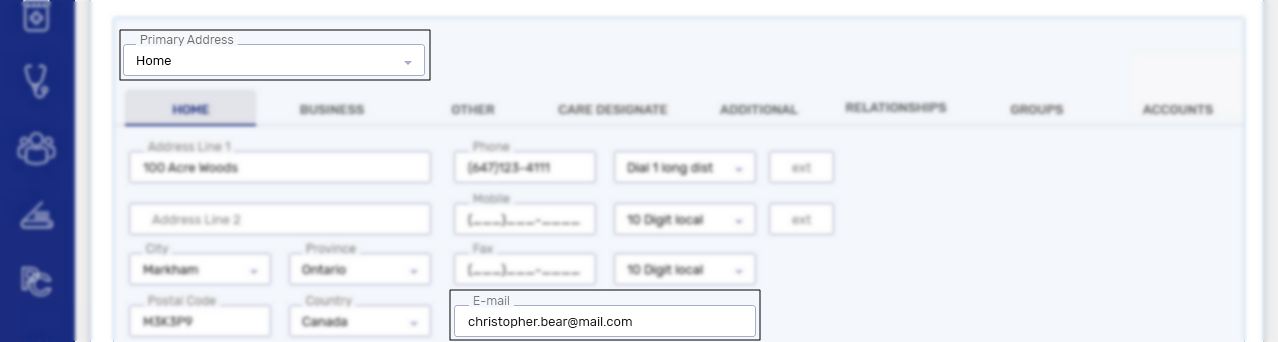
We recommend setting the Birth Date as a required patient field in More (...) > Pharmacy so this information is always entered when a Patient Folder is created. For more information, see Required Patient Fields.
Ensure to Save after entering the birth date and/or primary email address.
Overview of the Enrollment Process
The enrollment process can be initiated by the patient through the app or directly by the pharmacy. Regardless of the source, the steps to enroll the patient in Propel Rx are the same.
To enroll a patient in the Patient App program in Propel Rx:
-
Open the Patient Folder.
If the patient already created an account on the app...
In Healthera Connect, you will see the patient listed under the pharmacy's patient requests. Select the patient to view their submitted information. If you deem the request as valid, use this information to search for their Patient Folder or if they are new to your pharmacy, create a Patient Folder in Propel Rx.
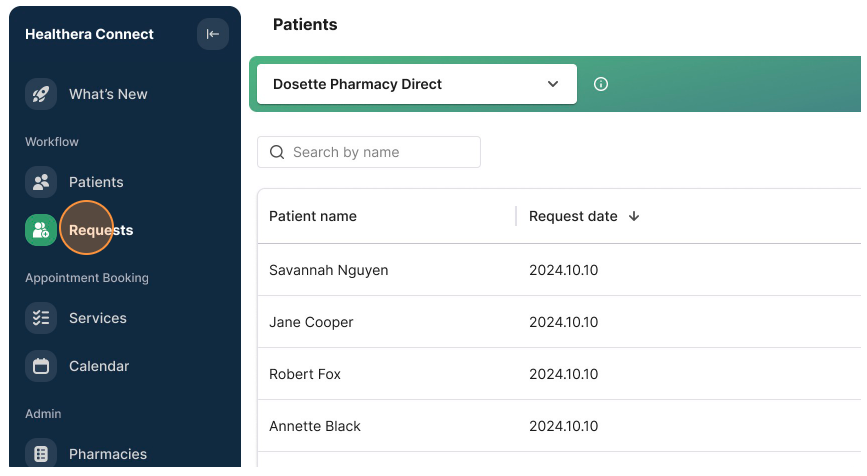
-
Select the Programs tab. If a patient has not been asked about the Patient App program, a status of Not Asked appears beside the Patient App field.
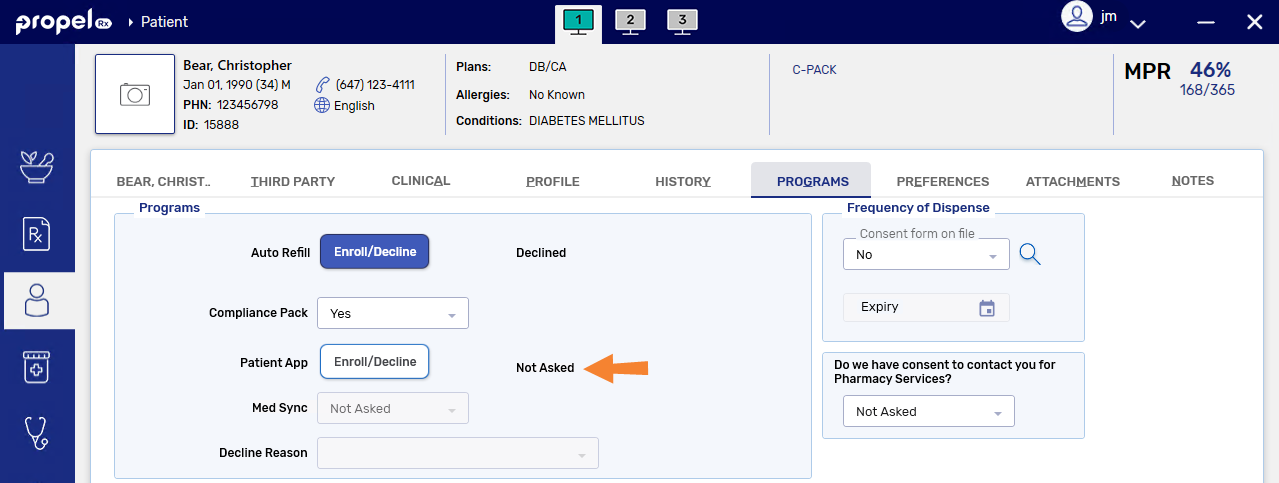
-
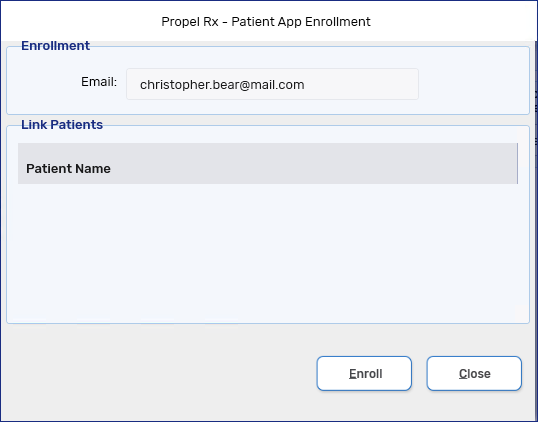
Beside the Patient App field, select the Enroll/Decline button. The Patient App Enrollment window opens with the patient's email address pre-populated. You cannot the edit the email address from this window; if it is incorrect, you must edit it from the Patient Folder Main tab.
-
Select Enroll.
The date and time that you enrolled the patient is recorded in the Patient App Enrollment window.
Accepting the Enrollment Request
After enrolling the patient in Propel Rx, an email will be sent to the patient. If the enrollment was initiated by your pharmacy, the email will instruct the patient to download the app and create a profile using the provided email address. Once done, the patient will receive a verification email. If the enrollment was initiated by the patient (i.e., they created an account before contacting your pharmacy), the patient will only receive the verification email.
-
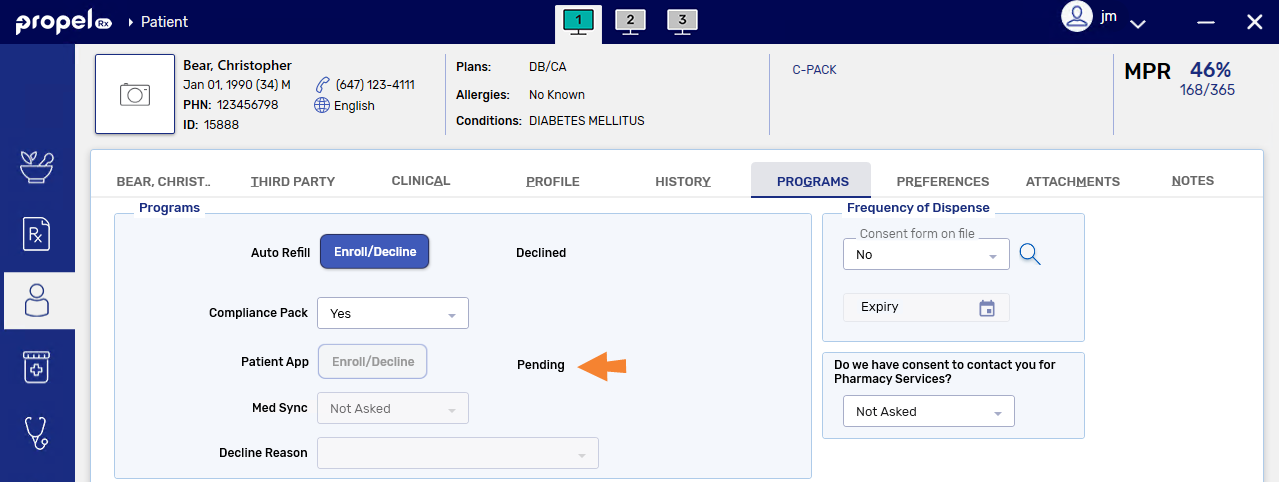
The Patient App enrollment status will display as Pending in the Patient Folder Programs tab.
-
The Enroll/Decline button will become disabled for 24 hours to give the patient time to accept the linkage.
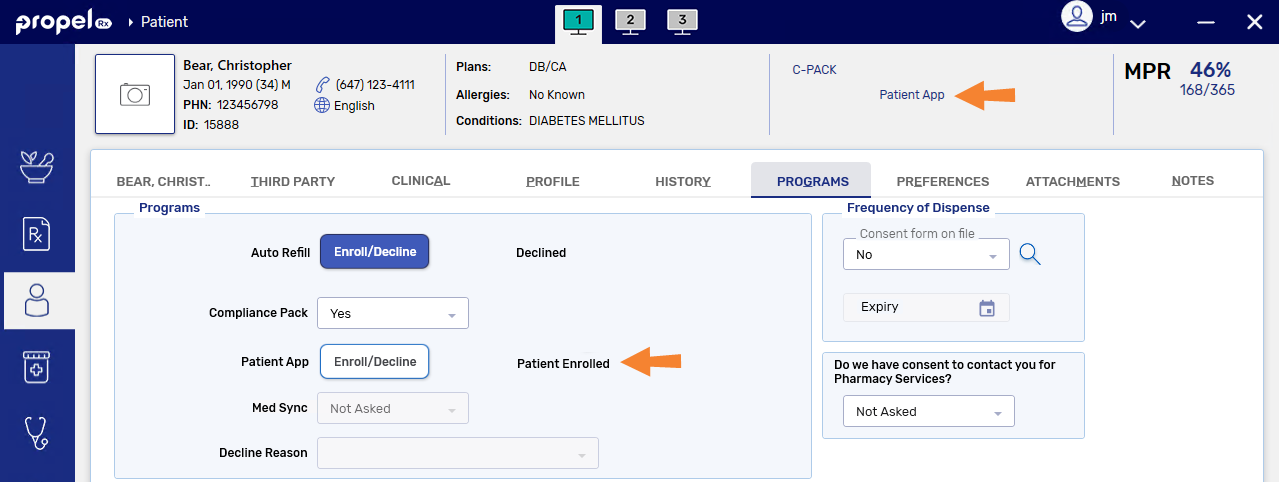
Once the patient verifies their account via the email that was sent to them, the Patient App enrollment status will display as Patient Enrolled in the Patient Folder Programs tab, and they will be linked to your pharmacy. The patient can then view their prescriptions on the app and submit Refill requests to your pharmacy. The date and time that the patient accepted the enrollment request is logged in the Patient Folder History tab.
If the patient is already enrolled at another pharmacy (i.e., they want to link to more than one pharmacy), after selecting the Enroll button at your pharmacy, the patient's email and birth date will be used to validate against their existing account. If a match is found, the patient status will automatically switch to Patient Enrolled instead of Pending.
If the patient can't locate the email, ask them to check their Junk or Spam folders. You can resend an enrollment request by repeating the steps in the enrollment process if at least 24 hours has passed since the last send. After 30 days without linkage, the patient's enrollment status in Propel Rx will switch from Pending to Not Asked.